How to Monitor CCTV Cameras Using Guarding Vision App?
The rise of smart home technology and remote security systems has transformed the way we monitor and protect our properties. One of the most effective ways to stay connected to your security cameras is through apps like Guarding Vision, which provides an easy-to-use platform for remote surveillance. Whether you’re a homeowner looking to keep an eye on your property or a business owner overseeing multiple locations, the Guarding Vision app offers a powerful, user-friendly solution for monitoring CCTV cameras.
In this guide, we’ll walk you through the process of using the Guarding Vision app to monitor your CCTV cameras, explaining its key features, benefits, and step-by-step instructions on how to make the most of the app.
What is Guarding Vision?
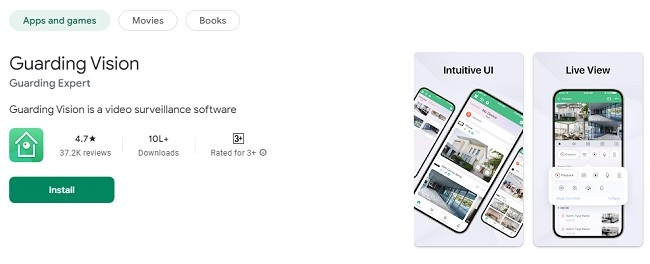
Guarding Vision is a mobile app designed to work with DVRs (Digital Video Recorders), NVRs (Network Video Recorders), and IP cameras that support Cloud P2P (Peer-to-Peer) functionality. This app allows users to connect to their security cameras remotely via the internet, offering a range of features to enhance security and surveillance.
Key features of the Guarding Vision app include:
Real-time video streaming
Video playback of recorded footage
Motion detection and instant alerts
Cloud storage support for remote access
Two-way audio communication (if supported by camera)
Device management
By connecting your security cameras to the Guarding Vision app, you can monitor your property from anywhere in the world using just your smartphone or tablet. With its easy setup and intuitive interface, Guarding Vision helps you stay in control of your surveillance system without needing to be physically present.
How Does Guarding Vision App Work with CCTV Cameras?
Guarding Vision connects with your CCTV cameras via Cloud P2P technology. This means that instead of manually configuring complex network settings, the app allows for simple and secure connection through the cloud. Once your cameras are connected to the internet and linked to the Guarding Vision app, you can access live streams, recorded videos, and even receive motion detection alerts directly on your phone.
To set up Guarding Vision with your CCTV cameras, you typically need to:
Install the Guarding Vision app on your device (available for both Android and iOS).
Create an account within the app to manage your security devices.
Add your CCTV cameras to your Guarding Vision account using the provided setup instructions.
Enjoy remote access to live video streams and video recordings.
This simple integration allows you to easily monitor and control your CCTV system without the hassle of complicated software or hardware installations.
Steps to Monitor CCTV Cameras Using Guarding Vision App
Now that we understand how Guarding Vision works, let’s break down the process of setting it up and using it to monitor your CCTV cameras.
Step 1: Install the Guarding Vision App
To begin monitoring your CCTV cameras with Guarding Vision, you need to install the app on your smartphone or tablet.
For Android Users:
Open the Google Play Store on your Android device.
Search for Guarding Vision.
Tap on Install to download and install the app.
Once the installation is complete, tap on Open to launch the app.
For iOS Users:
Open the App Store on your iPhone or iPad.
Search for Guarding Vision.
Tap on Get to download and install the app.
Once installed, tap on Open to launch the app.
Step 2: Create a Guarding Vision Account
After launching the app, you need to create an account. This allows you to securely manage and monitor your CCTV cameras from anywhere.
Tap on the Sign Up or Register option.
Provide the required information, including your email address, password, and any other necessary details.
Agree to the terms and conditions and tap Register.
You will receive a verification email. Follow the instructions in the email to confirm your registration.
Step 3: Add Your CCTV Cameras to the Guarding Vision App
Once you have created your account, you can add your CCTV cameras to the app for remote monitoring. This step requires your cameras to be connected to the internet.
Open the Guarding Vision app and log in with your newly created account.
Tap on the Device Management section or the Add Device button (usually found in the main menu).
Choose the appropriate camera type (DVR, NVR, or IP Camera) based on the devices you are using.
Follow the instructions provided by the app to connect your CCTV cameras to your account. This typically involves scanning a QR code displayed on the camera’s screen or manually entering the camera’s serial number.
Once the camera is successfully added, you can name your camera (e.g., "Front Door Camera", "Backyard Camera", etc.) for easy identification.
Step 4: Access Live Video Streams
After adding your cameras, you can start monitoring your property in real time. The Guarding Vision app allows you to view live video feeds from all of your connected cameras.
From the main screen of the app, tap on the camera you want to monitor.
The app will stream live video from that camera to your device. You can also tap on multiple cameras to view them simultaneously, depending on how many devices you have connected.
The live feed will update in real-time, allowing you to monitor your property continuously.
Step 5: Playback Recorded Footage
Guarding Vision not only lets you view live video but also provides an easy way to review previously recorded footage. This is particularly useful if you need to check for specific events, such as motion detection triggers or incidents that occurred while you were away.
Tap on the Playback or Video Recordings option in the app.
Select the camera you wish to view recorded footage from.
Choose the date and time you want to review. You may be able to scroll through a timeline to locate specific events.
Once you find the desired footage, tap on it to watch the video.
Guarding Vision allows you to easily review hours or days of footage with a few simple taps, making it easier to find and identify important events.
Step 6: Set Up Motion Detection Alerts
One of the standout features of the Guarding Vision app is its ability to send motion detection alerts directly to your phone. This feature is especially valuable for enhancing security, as it notifies you whenever movement is detected in front of your cameras.
In the Device Management section, tap on the camera for which you want to enable motion detection.
Go to the Motion Detection Settings and toggle the feature on.
Adjust the sensitivity level and set up the motion detection zones (if your camera supports it).
Choose how you want to be notified, such as by push notification, email, or in-app alert.
Once motion detection is enabled, you’ll receive instant notifications whenever something moves within the camera’s field of view.
Step 7: Use Two-Way Audio (If Supported by Your Camera)
Certain cameras supported by Guarding Vision come with a two-way audio feature, which allows you to listen to sounds near your camera and speak to people on the other side.
Tap on the camera’s live feed in the app.
Look for the two-way audio icon, which typically looks like a microphone or speaker.
Tap on the icon to listen to the audio feed from the camera. You can also press the microphone icon to speak through the camera’s speaker.
This feature can be very helpful for communicating with people at your door or in your office, even when you’re not physically present.
Step 8: Manage Multiple Devices
If you have several CCTV cameras installed at different locations, Guarding Vision allows you to manage and view multiple cameras at the same time. This is particularly useful for business owners or homeowners with large properties who need to keep track of several areas at once.
From the main app screen, tap on the multi-camera view option.
Select which cameras you want to display. You can choose to display up to four or more cameras at once, depending on the app’s capabilities.
All selected cameras will appear on your screen, and you can tap on any of them for a more detailed view.
Benefits of Using Guarding Vision for CCTV Monitoring
Now that you understand how to use the Guarding Vision app, let’s review some of the key benefits of this app for CCTV monitoring:
Remote Access: Guarding Vision allows you to monitor your property from anywhere in the world, as long as you have an internet connection.
Ease of Use: The app’s intuitive design makes it simple for anyone to set up and start monitoring cameras without technical knowledge.
Real-Time Monitoring: Stay updated on your property’s security with live video feeds.
Instant Notifications: Motion detection alerts ensure that you’re notified immediately if something happens in front of your cameras.
Video Playback: Quickly review recorded footage to investigate specific events.
Two-Way Audio: Communicate with people on the other side of your camera for added convenience and security.
Conclusion
The Guarding Vision app is an excellent tool for anyone who wants to monitor their CCTV cameras remotely and efficiently. By following the simple steps outlined above, you can set up and manage your security system with ease. Whether you're monitoring your home, business, or any other location, Guarding Vision provides you with real-time access, video playback, motion detection alerts, and more—all from your mobile device.
By leveraging the app’s capabilities, you can ensure that your property is always secure and that you’re always in the know about what’s happening around you.
Updates